1 Introduction
A team can be used to manage members, facilitate team collaboration, manage data assets, etc. For example, you can choose to create a team based on a group, a branch company, or an independent company. Each user can create/join multiple teams, and data between different teams is isolated. Therefore, you can create one or more teams according to management needs. Each team can invite other teams to participate in business collaboration; conversely, it can also act as a collaborating team and be invited to participate in the collaborative work of other teams.
2 Create a Team
2.1 Create a Team for the First Time
As a team founder, you need to create a team first after logging in for the first time. 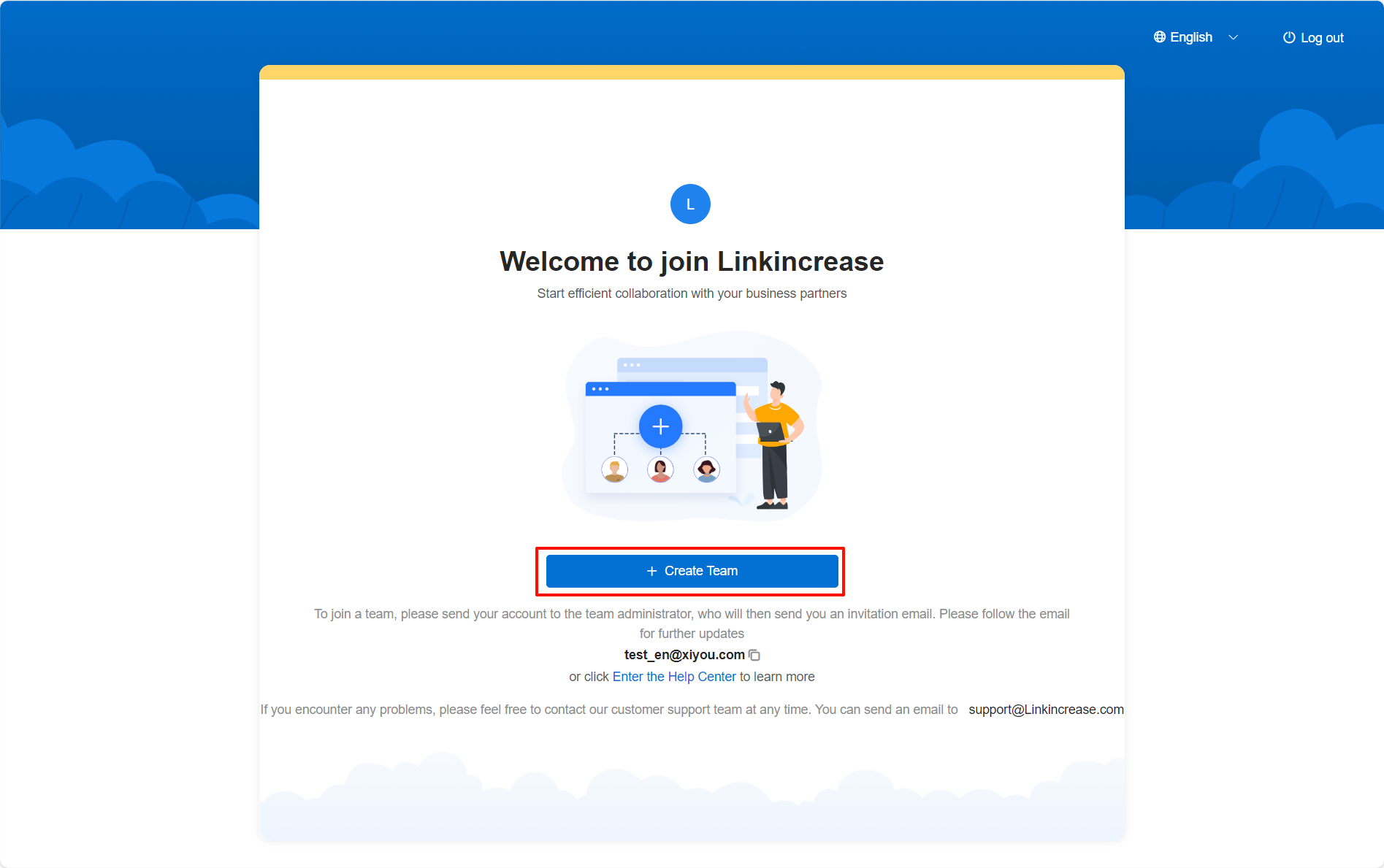
Click the create button to open the create team pop-up window. 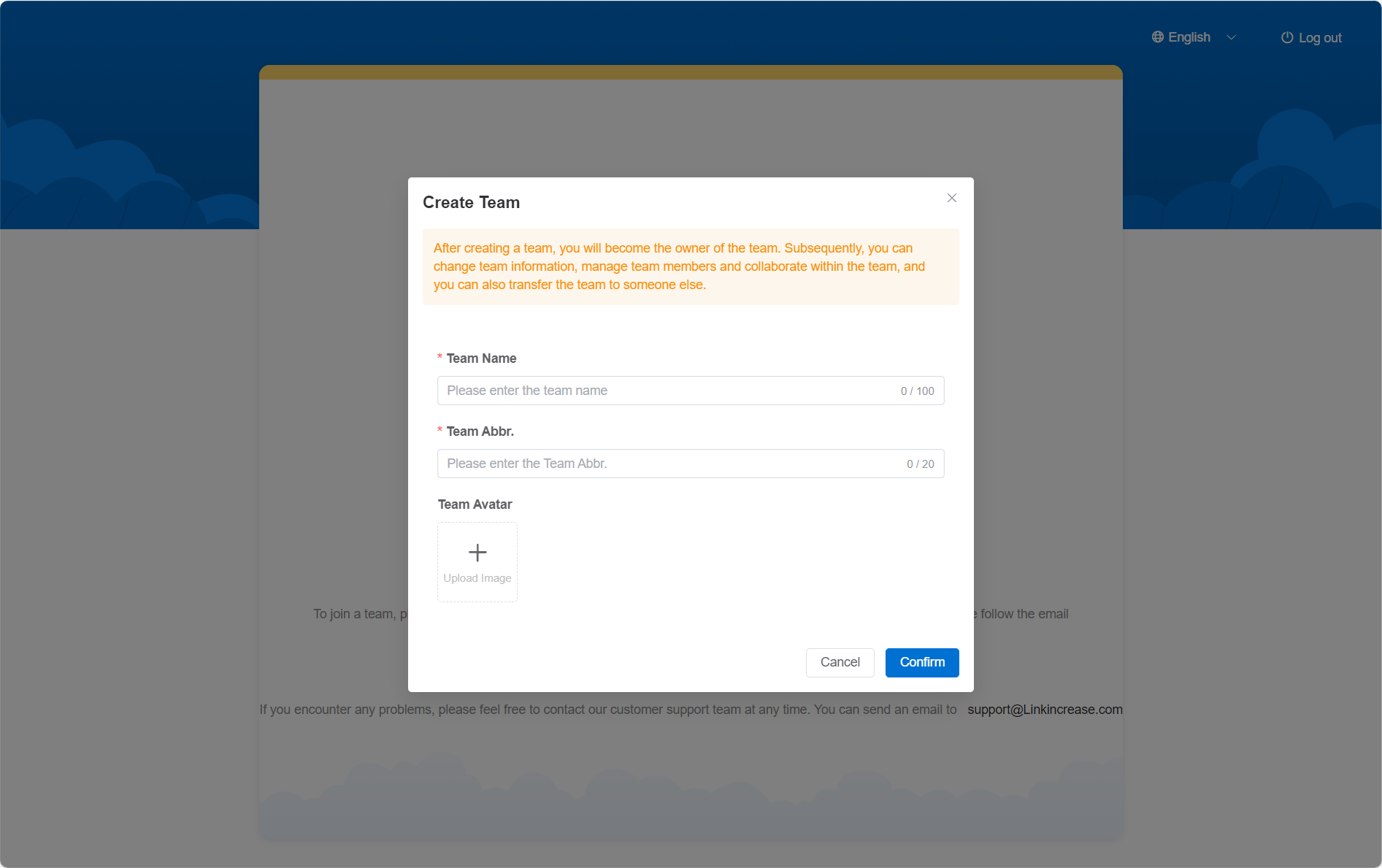
- Team Name: Enter the full name of your team.
- Team Abbreviation: Enter an easily recognizable abbreviation.
- Team Avatar: You can upload a logo representing your team, or leave it blank for the time being. The first character/letter of your team name will be used as the team avatar.
After creating the team, follow the on-page guidance to start using Linkincrease. 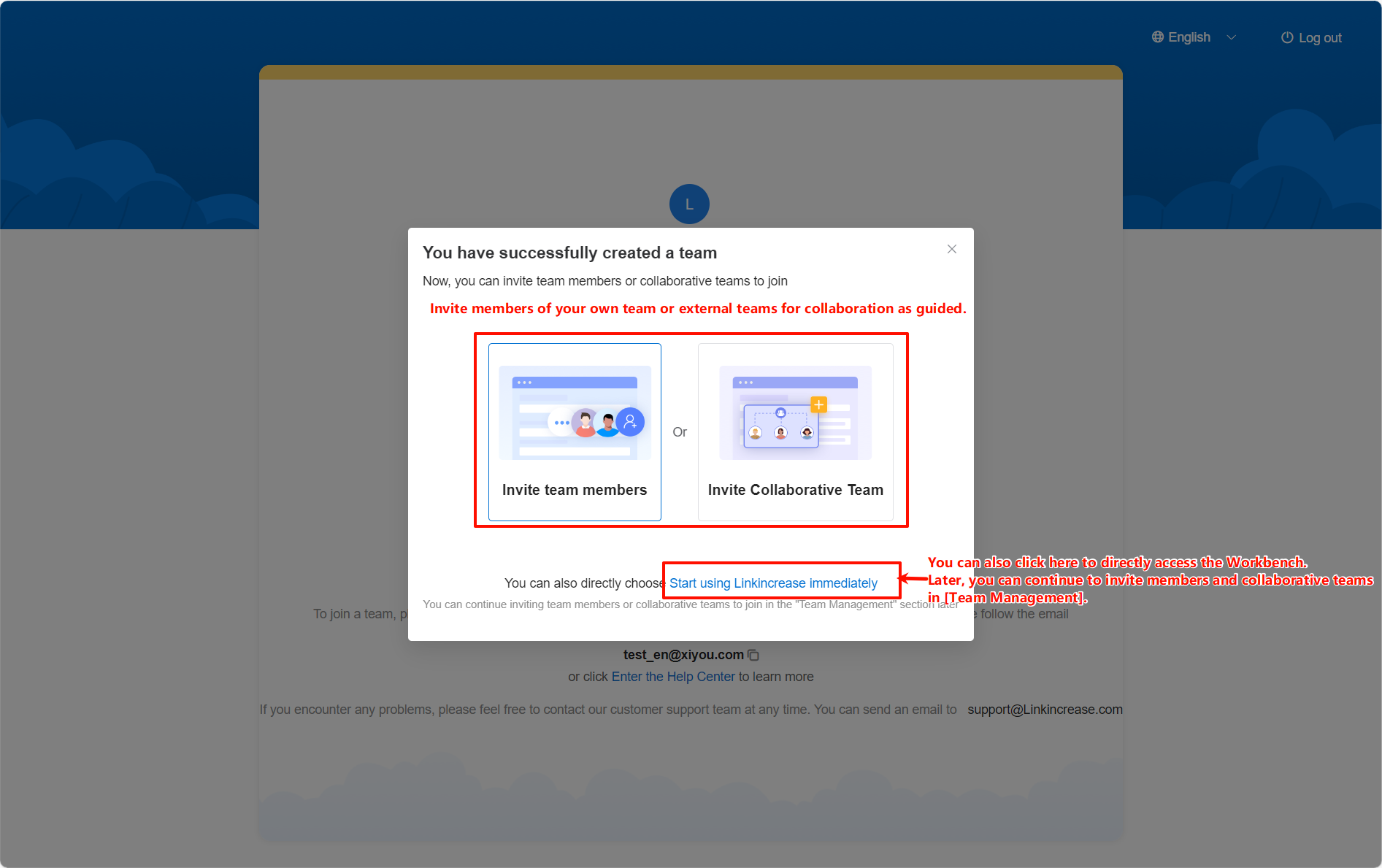
2.2 Create More Teams
If a team already exists but you need to create a new one according to management requirements, you can click the team avatar in the upper left corner, and then click the "Create Team" button at the bottom of the team list to create more teams. 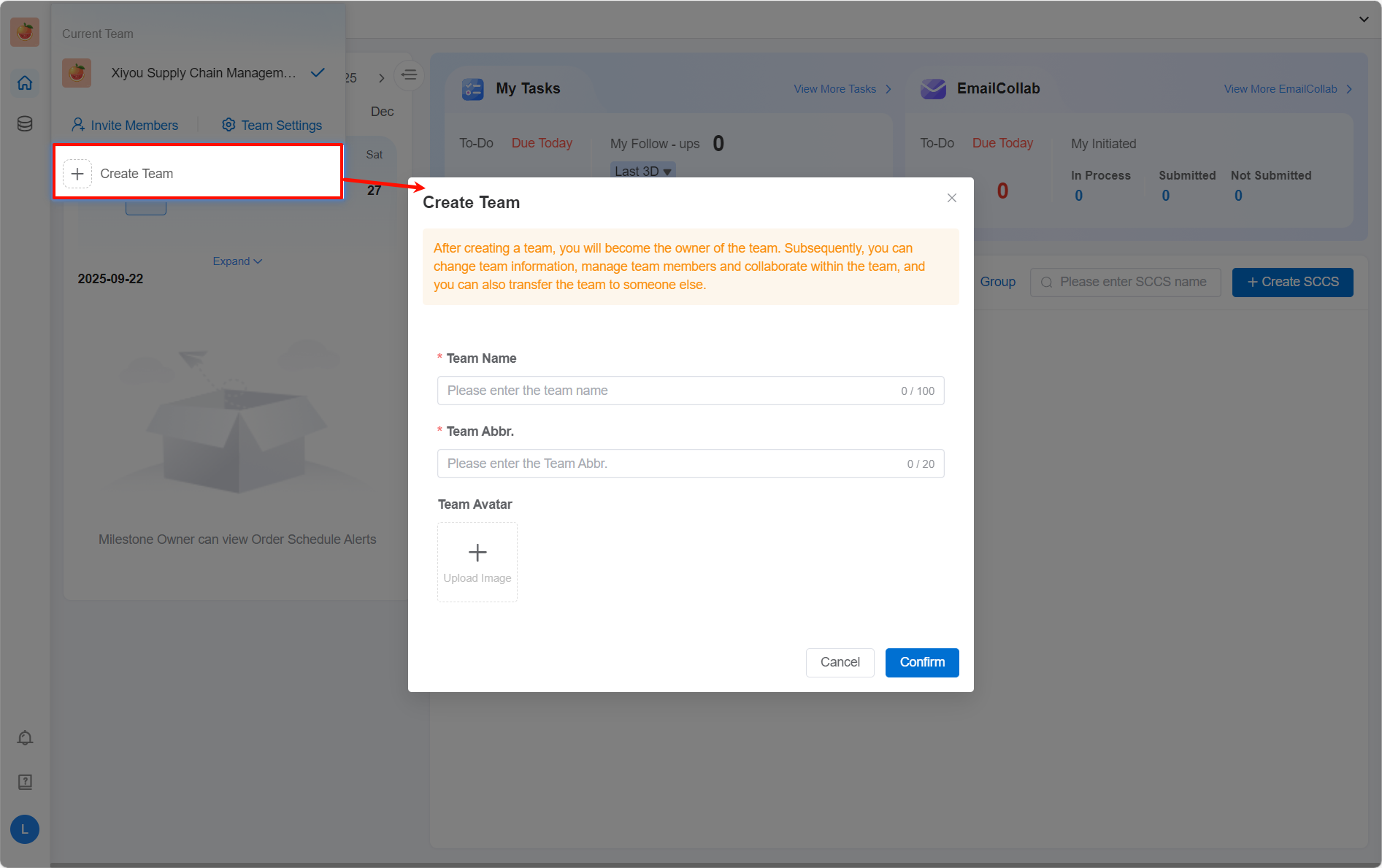
3 Members Join the Team
Step 1: Administrator adds members: Team administrators can enter the management page by clicking the team avatar in the upper left corner. Click the "Invite Members" button to quickly add members. Meanwhile, you can also enter the team settings - member management page to add, delete members and set permissions for members of the team. 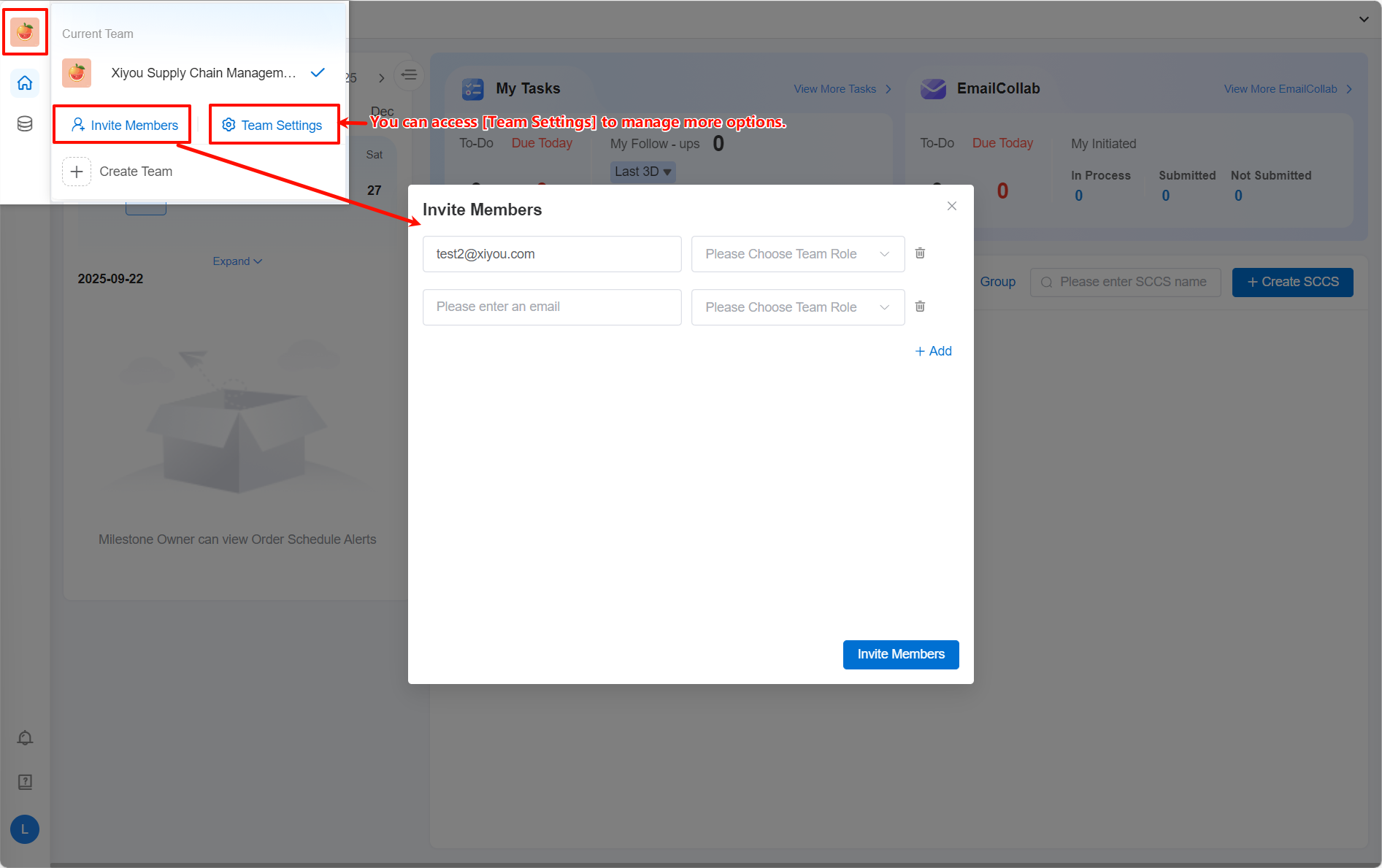
- Email: Enter the email address of the member to be added to the team.
- Team Role: Set the role of each member in the team. Each role has corresponding permissions. If you don't need to grant any permissions to a member, the role can be left blank. The system default role is "Team Administrator", which has all the permissions for team management. For more explanations about team permissions, please refer to: [Team Settings - Role Management](../teamM/File Name)
- +Add: You can add multiple members at a time. You can click this button to add more blank lines.
- Click "Invite", the entered email addresses will be directly added to the current team, and a notification email will be sent to all invited members.
Step 2: As a team member: After the administrator adds a member to the team, the corresponding account email will receive an invitation notification. You can view the joined team when you log in next time. 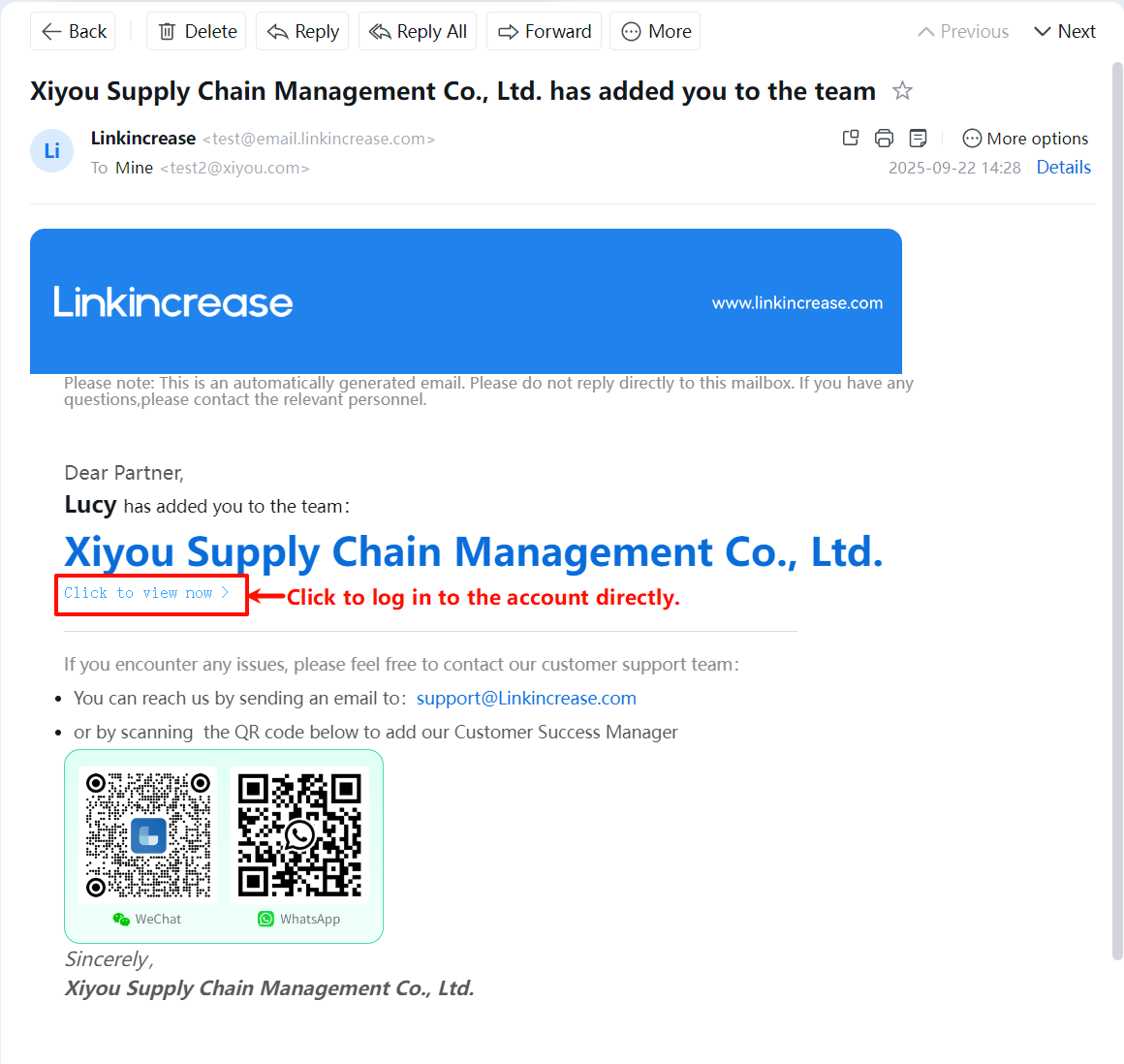
4 Switch Teams
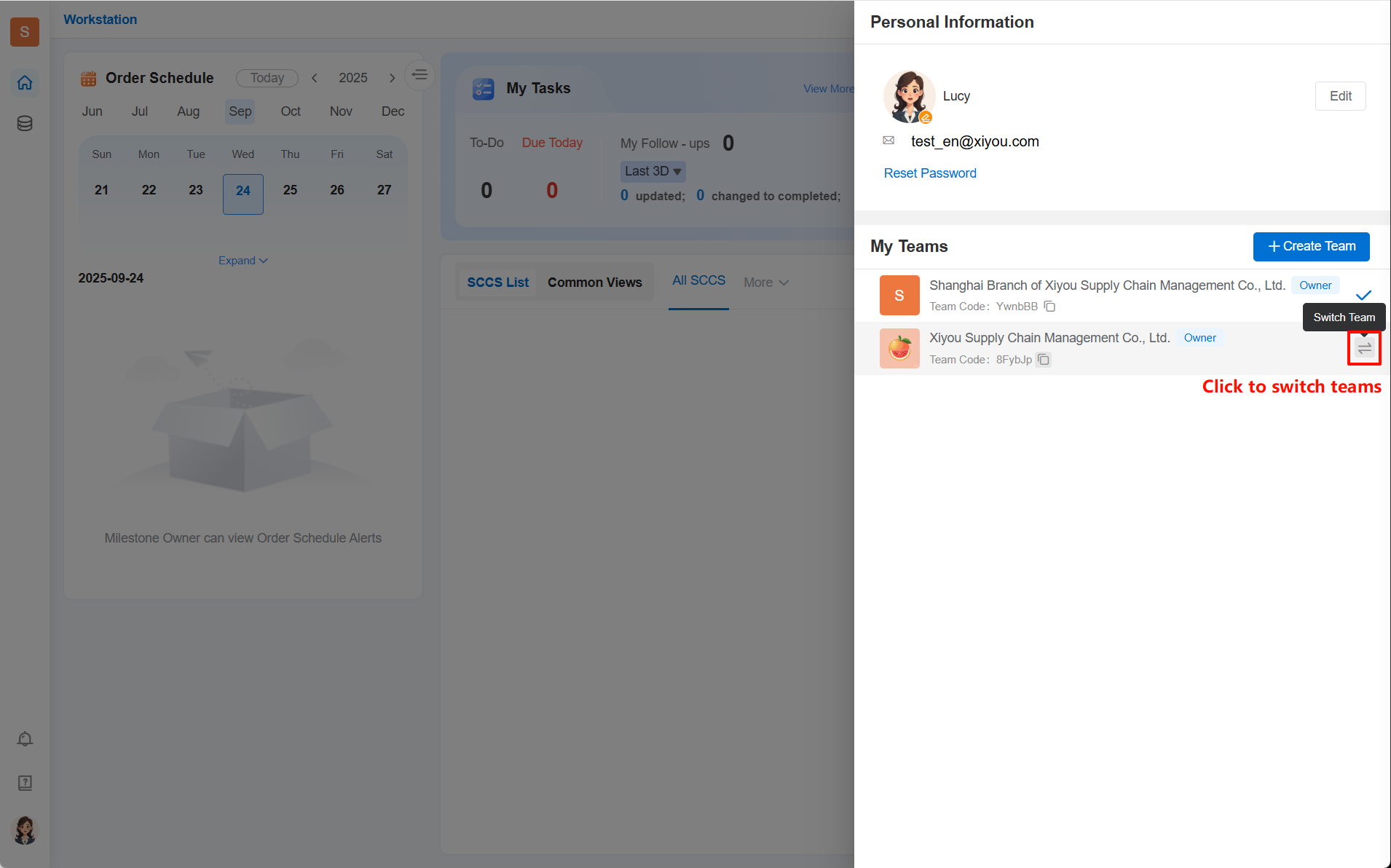
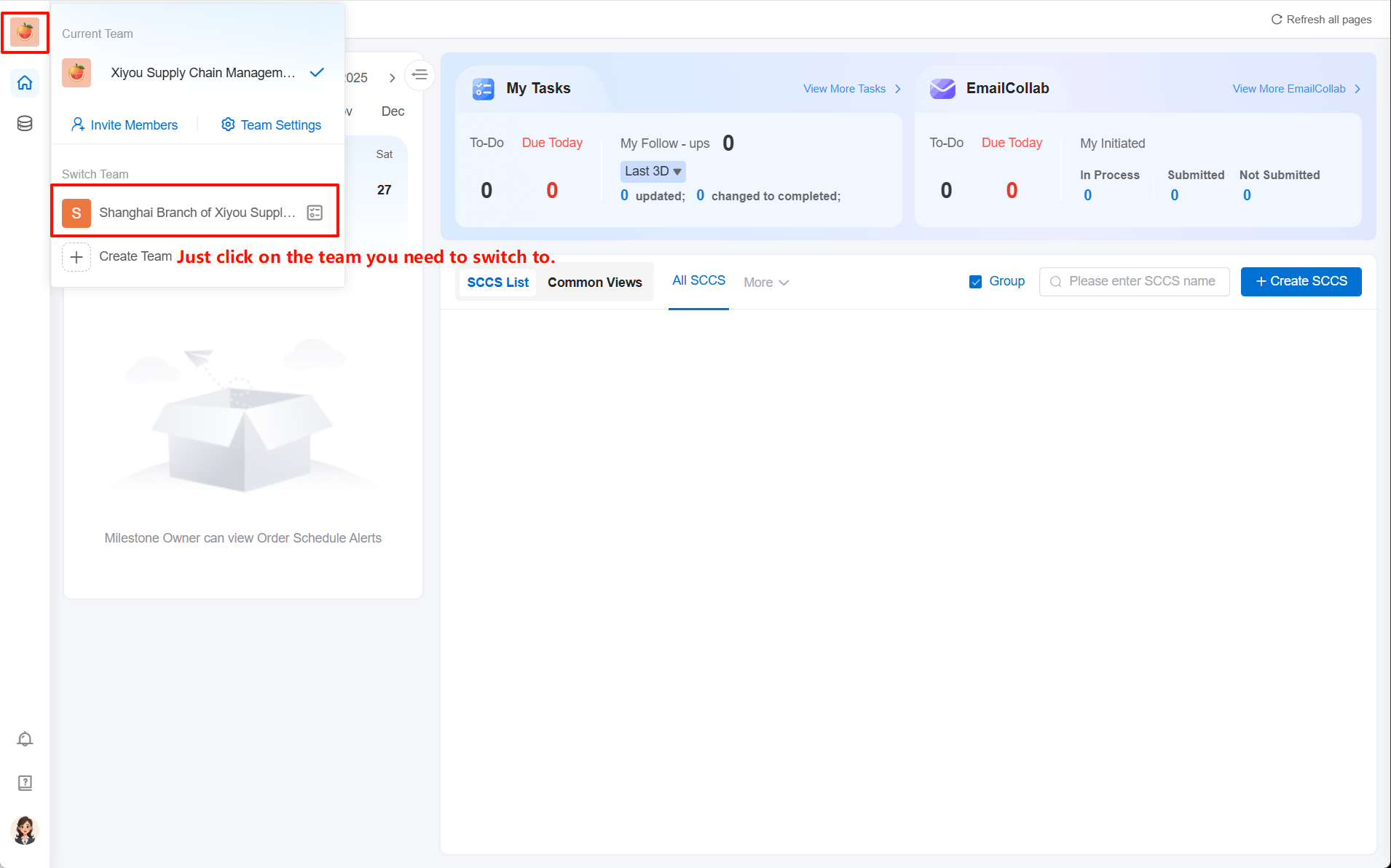
When you create or join multiple teams, you can switch teams to view data under different teams.
- Method ①: Switch through the team icon in the upper left corner.
- Method ②: Switch on the personal center page.